


Submitter
Follow @BibleSupport
SUPPORT TOPIC File Information
- Submitted: Nov 28 2011 07:46 PM
- Last Updated: Nov 23 2022 09:26 AM
- File Size: 3.82MB
- Views: 451625
- Downloads: 146,826
- Author: Josh Bond
Support BibleSupport.com
-
If our e-Sword and MySword modules have blessed you, please consider a small donation.
Your donation pays only for dedicated server hosting, bandwidth, software licenses, and capital equipment (scanners, OCR equipment, etc).
e-Sword Utility:
Download
FOR WINDOWS PC ONLY e-Sword Module Installer 0.6
 274 Votes
 235
235
Author:
Josh Bond
Description
The e-Sword Module Installer automatically installs your e-Sword modules! It copies your e-Sword module to your e-Sword Resources Location or User Files Location on your Windows PC. This works for e-Sword 9 onwards.
Step 1:
Download and install the Module Installer. (During or after the download, click "Open" or "Run" to install the Module Installer)
Step 2:
You can install modules from Windows Explorer, Internet Explorer, or Firefox.
Option A - Double Click the file in Windows Explorer
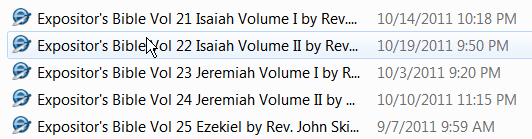
You can now double-click any e-Sword module you downloaded in Windows Explorer:
(If the Module Installer asks you for Administrator permissions, click "Yes".)
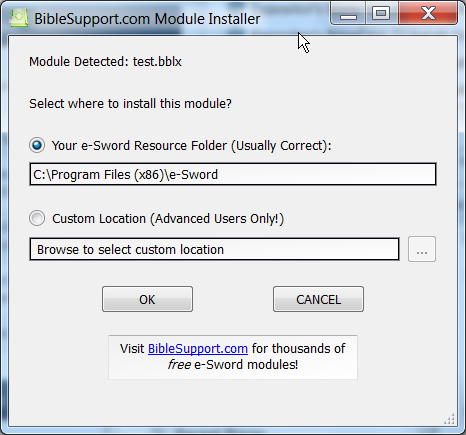
For a non-editable module, the Module Installer shows this screen (don't worry, all you have to do is click "OK").
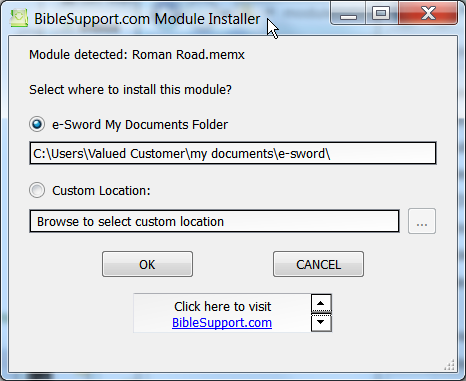
For an editable module, the Module Installer shows this screen (don't worry, all you have to do is click "OK").
Zip files
If you downloaded a zip file: double-click the zip file (or open it while you download the file, as shown below). When the zip file opens, double-click the e-Sword module to launch the installer.
Option B - Installing directly from Internet Explorer
You can install a module without leaving Internet Explorer! After starting your download in Internet Explorer 9, click Open in the popup at the bottom of the screen. This will launch the Module Installer when the download finishes.

Option C - Installing directly from Firefox
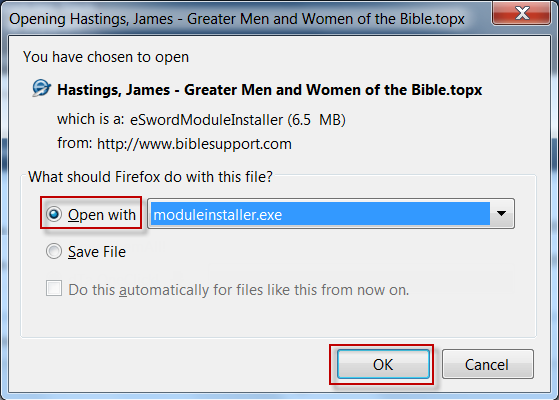
You can install a module without leaving Firefox! After starting your download in FireFox, the download popup below will appear. Click the "Open with" option and click "OK". This will launch the Module Installer when the download finishes.
Compatibility
Windows 2000, Windows XP, Windows Vista, Windows 7, Windows 8, Windows 10 and maybe older versions of Windows.
Acknowledgments
Special thanks to Brent Hildebrand for help with the installation file, which was was more trouble than the application itself. And special thanks to Doctor Dave and Jon Graef for beta testing.
What's New in Version 0.6 (See full changelog)
- September 2, 2016: No coding changes. I added a code signing certificate to both the installer exe and the tab renamer exe to avoid most virus/malware warnings. This identifies the program as being from "Bible Support".
- July 2016:
- Updated to work with e-Sword's HTML/Apple modules, such as commentary.refi, bible.bbli, reflibrary.refi, lexicon.lexi, etc.



Why do I need this download? Why cant I use the module installer that comes with esword?
The internal e-Sword Module Downloader that you discovered in e-Sword for the PC, was invented by Rick Meyers, to enable him to download modules for Bibles, Commentaries, Dictionaries and Lexicons, Devotions, Graphics, and Reference Books directly into the relevant e-Sword folders on your PC. You can go to the website https://e-sword.net and select the tab FAQ. Here you will see the option:
HOW DO I ADD ADDITIONAL MODULES TO E-SWORD?Use the Download menu from *within* e-Sword. Check out the "Download" demo on the Training page.
To learn more, select the tab “TRAINING”. Alternatively, move your pointer over the underlined word Training and select that option by tapping the left mouse button, or by tapping the equivalent left button on the mouse pad on a laptop, while the pointer remains hovering over the specific item.
From the page, https://e-sword.net/training.html select the option: “Downloading additional resources for e-Sword.” Be patient as the file takes some time to start. The file itself is at https://e-sword.net/...t/download.html Please give it close attention, watching the movement of the cursor shown on the screen, and read the accompanying explanations.
Your PC needs internet access to enable it to be able to download the modules provided by Rick Meyers.
Initially developed in English, e-Sword is also available in Spanish, the two predominant languages in the United States of America. You can select from a list of 29 different application languages, to access e-Sword with a template applicable to that language, to help you to access the modules that you want to view.
MODULES FROM BIBLE SUPPORT
The Bible Support website is a separate website, developed by Josh Bond. It is now supported by many Bible enthusiasts. Over a period of many years, a collection of different modules has been assembled to augment the modules provided by Rick Meyers for e-Sword. Other modules were provided for users of the alternative application, MySword. This is a totally separate application, different from e-Sword. You need to select the correct version of modules, specifically applicable to run on your version of e-Sword.
After having downloaded a module from BIBLE SUPPORT, you may still need to unzip compressed files, and install that module into the computer folder in which e-Sword will look for its resources. Because these modules were made and submitted by different individuals, they are not all updated to the latest e-Sword formats, but will most likely still work on your version of e-Sword.
To assist you to copy downloaded modules from BIBLE SUPPORT to the correct e-Sword folders, the Bible Support utility MODULE INSTALLER was designed. By installing this, it will enable you to click on a downloaded file, from Bible Support, and if it is an e-Sword module, and unzipped, and in the correct format, will copy this module to the required e-Sword folder.
COMPUTER SECURITY
You may find that files with the “exe” extension are blocked by your PC. When downloading these, append “.docx” to the filename which is to be downloaded. You may find that the Property on all files downloaded from another computer have been blocked. Browse to the downloaded file, view the Properties, and select the “Unblock” checkbox, then select the “Apply” and “OK” options. Then you can change the filename, of the successfully downloaded file, as required, and correct incorrect spelling so that you will be able to find the file more easily when it has been moved to the e-Sword folder.
Select Start > Settings > Privacy & Security > Windows Security > Virus & Threat Protection.
You can allow apps to access your protected folders, but you should only allow apps that you trust.
Under Virus & Threat Protection settings, select Manage settings.
Under Controlled folder access, select Manage controlled folder. Switch the controlled folder access to ON or OFF. This is designed to protect files, folders, and memory areas on your device from unauthorized changes by unfriendly applications.
You can allow an app through Controlled folder access. If Controlled folder access has blocked an app you trust, you can add it as an allowed app. This allows the app to make changes to protected folders.
For example, add e-Sword.exe from C:\Program Files (x86)\e-Sword
For example, add ModuleInstaller.exe from C:\Program Files\e-Sword Module Installer
Notes provided by Olaf Bacon. I hope this has helped you to understand the difference between the internal e-Sword Module Downloader, and the Utility from Bible Support, called Module Installer.
Look for this in C:\Program Files\e-Sword Module Installer
Look for this in C:\Program Files\e-Sword Module Installer
Name Size Date modified ModuleInstaller.exe 550 kB
02/09/2016, 23:47:54
msvcp90.dll 556 kB
22/11/2011, 23:35:12
msvcr90.dll 641 kB
22/11/2011, 23:35:12
QtCore4.dll 2.2 MB
22/11/2011, 23:35:12
QtGui4.dll 7.8 MB
22/11/2011, 23:35:12
unins000.dat 11.6 kB
05/10/2025, 13:38:45
unins000.exe 770 kB
05/10/2025, 13:38:17
thank you
Other files you may be interested in ..
- 8,328 Total Files
- 52 Total Categories
- 295 Total Contributors
- 6,401,375 Total Downloads
- Timeless King James Update (TKJU) - Old+New Testament Bible Latest File
- WordForever Latest Submitter
user(s) are online (in the past 30 minutes)
members, guests, anonymous users


Why do I need this download? Why cant I use the module installer that comes with esword?