


Submitter
Follow @BibleSupport
SUPPORT TOPIC File Information
- Submitted: Nov 28 2011 07:46 PM
- Last Updated: Nov 23 2022 09:26 AM
- File Size: 3.82MB
- Views: 451554
- Downloads: 146,814
- Author: Josh Bond
Support BibleSupport.com
-
If our e-Sword and MySword modules have blessed you, please consider a small donation.
Your donation pays only for dedicated server hosting, bandwidth, software licenses, and capital equipment (scanners, OCR equipment, etc).
e-Sword Utility:
Download
FOR WINDOWS PC ONLY e-Sword Module Installer 0.6
 274 Votes
 235
235
Author:
Josh Bond
Description
The e-Sword Module Installer automatically installs your e-Sword modules! It copies your e-Sword module to your e-Sword Resources Location or User Files Location on your Windows PC. This works for e-Sword 9 onwards.
Step 1:
Download and install the Module Installer. (During or after the download, click "Open" or "Run" to install the Module Installer)
Step 2:
You can install modules from Windows Explorer, Internet Explorer, or Firefox.
Option A - Double Click the file in Windows Explorer
You can now double-click any e-Sword module you downloaded in Windows Explorer:
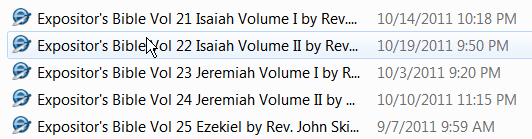
(If the Module Installer asks you for Administrator permissions, click "Yes".)
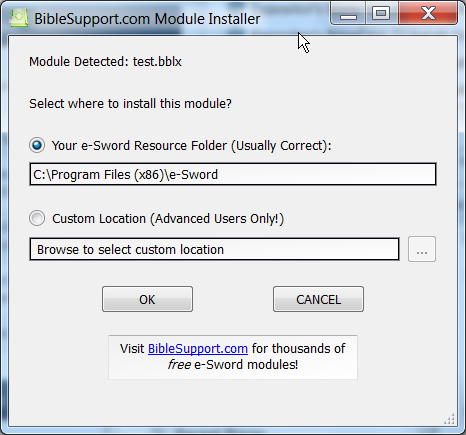
For a non-editable module, the Module Installer shows this screen (don't worry, all you have to do is click "OK").
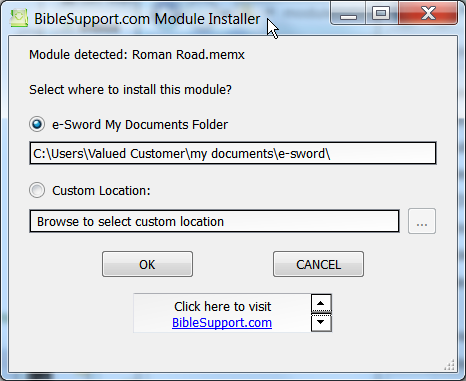
For an editable module, the Module Installer shows this screen (don't worry, all you have to do is click "OK").
Zip files
If you downloaded a zip file: double-click the zip file (or open it while you download the file, as shown below). When the zip file opens, double-click the e-Sword module to launch the installer.
Option B - Installing directly from Internet Explorer
You can install a module without leaving Internet Explorer! After starting your download in Internet Explorer 9, click Open in the popup at the bottom of the screen. This will launch the Module Installer when the download finishes.

Option C - Installing directly from Firefox
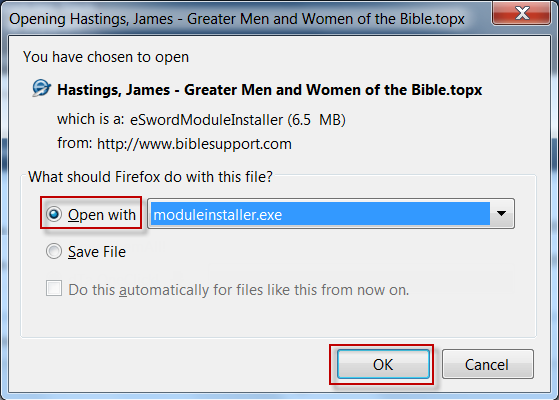
You can install a module without leaving Firefox! After starting your download in FireFox, the download popup below will appear. Click the "Open with" option and click "OK". This will launch the Module Installer when the download finishes.
Compatibility
Windows 2000, Windows XP, Windows Vista, Windows 7, Windows 8, Windows 10 and maybe older versions of Windows.
Acknowledgments
Special thanks to Brent Hildebrand for help with the installation file, which was was more trouble than the application itself. And special thanks to Doctor Dave and Jon Graef for beta testing.
What's New in Version 0.6 (See full changelog)
- September 2, 2016: No coding changes. I added a code signing certificate to both the installer exe and the tab renamer exe to avoid most virus/malware warnings. This identifies the program as being from "Bible Support".
- July 2016:
- Updated to work with e-Sword's HTML/Apple modules, such as commentary.refi, bible.bbli, reflibrary.refi, lexicon.lexi, etc.




The .lexx filetypes can be moved using File Explorer, and the Copy option, and then browse to the Resource Destination Location, such as to C:\Program Files (x86)\e-Sword and use the Paste option. Then check that the file was moved.
When you download a module from e-Sword "Download" option to your PC, it will usually download directly into This PC > C: drive > Program Files (x86) > e-Sword folder.
If your PC has not been set to allow https://www.e-sword.net to load directly into C:\Program Files (x86)/e-Sword folder, then the file may be downloaded to C:\\Users\[filename]\AppData\Local\VirtualStore\Program Files (x86)\e-Sword folder.
NOTE: The [filename] will be how the PC identifies your login, and may be "user" or something else. Use the name for the relevant folder.
Using File Explorer, browse to C:\Users\User\AppData\Local\VirtualStore\Program Files (x86)\e-Sword
Move the pointer to thayer.lexx for example. Right click. Select "Copy" option.
Browse to This PC > C: drive > Program Files (x86) > e-Sword folder and right click, and move your pointer to the "Paste" option, and left-click. The file ought to be copied to the destination folder. Then open that folder and check that the file was actually loaded into the folder.
If there are other files in the same file, use the option to select the file, and left-click, and it ought to bring up C:\Program Files\e-Sword Module Installer\InstallerModule.exe and that ought to allow you to get the file to be copied into C:\Program File (x86)\e-Sword folder correctly.
Thank you, my brother for finding the time to put this incredibly helpful utility together!
I have just recently re-discovered this website having spent some time browsing in the past but never actually taking advantage of the resources available. This installer has made it a cinch for me to add in the features I want so that I can tailor e-Sword to my needs.
hi there, is there an installer module for e-sword version 13
This BibleSupport e-Sword Module Installer will work successfully for all versions of e-Sword from version 9 and later, including up to e-Sword version 13.0.0
There is a draft proposed revised instructions for the Biblesupport.com e-Sword Module Installer at
http:// www.biblesupport.com/topic/11491-module-installer-info/
LINK: http://www.biblesupp...installer-info/
for further attention by the moderators, and webmaster. Thank you.
Is there a version for MacOS?

Is there a version for MacOS?
There is no need for a version for macOS. Just double click the e-Sword module file and it will open in e-Sword automatically.
Totally intuitive. Thank you all you BLESSED PEOPLE. I didn't have to even think when I ran the download installer app. Blinked my eyes a couple of times and every thing was installed. Well done BLESSED PEOPLE.
I think that the problem many have, is that they didn't install eSword correctly. That's what happened to me in the past.
This time, on a new PC, I got it right. All works like it should.
Blessings, 1clearbrush
If you experience the problem that a downloaded file with the "exe" file type is being blocked, and unable to download successfully on your WINDOWS PC, refer to the notes by Olaf Bacon. These notes are in PDF format.
at http://www.biblesupp...aded-exe-files/
Other files you may be interested in ..
- 8,328 Total Files
- 52 Total Categories
- 295 Total Contributors
- 6,400,974 Total Downloads
- Targumim and Peshitta New Testament ARC-RO Latest File
- FlorinCB Latest Submitter
user(s) are online (in the past 30 minutes)
members, guests, anonymous users


Thank you for this. In my default apps list, I have all the extensions but .lexx. Is this going to be a problem for me?