


Submitter
Follow @BibleSupport
SUPPORT TOPIC File Information
- Submitted: Nov 28 2011 07:46 PM
- Last Updated: Nov 23 2022 09:26 AM
- File Size: 3.82MB
- Views: 398903
- Downloads: 137,226
- Author: Josh Bond
Support BibleSupport.com
-
If our e-Sword and MySword modules have blessed you, please consider a small donation.
Your donation pays only for dedicated server hosting, bandwidth, software licenses, and capital equipment (scanners, OCR equipment, etc).
Other Modules By Same Author
e-Sword Utility:
Download
FOR WINDOWS PC ONLY e-Sword Module Installer 0.6
 270 Votes
 225
225
Author:
Josh Bond
Description
The e-Sword Module Installer automatically installs your e-Sword modules! It copies your e-Sword module to your e-Sword Resources Location or User Files Location on your Windows PC. This works for e-Sword 9 onwards.
Step 1:
Download and install the Module Installer. (During or after the download, click "Open" or "Run" to install the Module Installer)
Step 2:
You can install modules from Windows Explorer, Internet Explorer, or Firefox.
Option A - Double Click the file in Windows Explorer
You can now double-click any e-Sword module you downloaded in Windows Explorer:
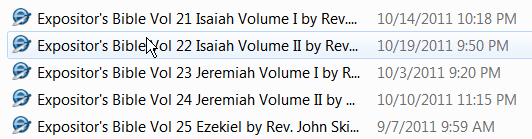
(If the Module Installer asks you for Administrator permissions, click "Yes".)
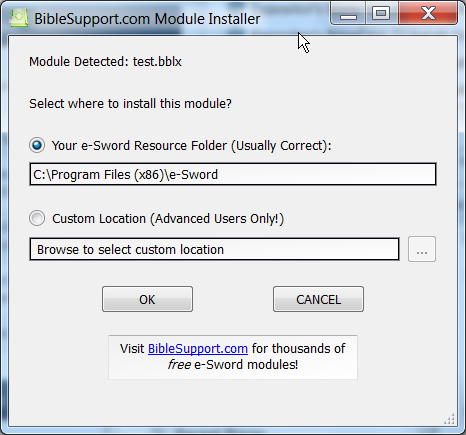
For a non-editable module, the Module Installer shows this screen (don't worry, all you have to do is click "OK").
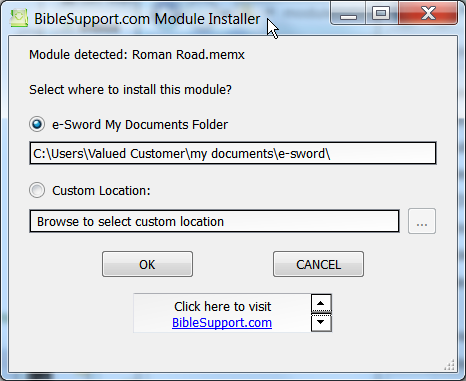
For an editable module, the Module Installer shows this screen (don't worry, all you have to do is click "OK").
Zip files
If you downloaded a zip file: double-click the zip file (or open it while you download the file, as shown below). When the zip file opens, double-click the e-Sword module to launch the installer.
Option B - Installing directly from Internet Explorer
You can install a module without leaving Internet Explorer! After starting your download in Internet Explorer 9, click Open in the popup at the bottom of the screen. This will launch the Module Installer when the download finishes.

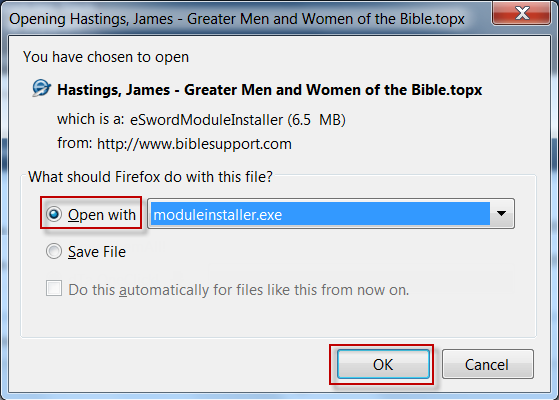
Option C - Installing directly from Firefox
You can install a module without leaving Firefox! After starting your download in FireFox, the download popup below will appear. Click the "Open with" option and click "OK". This will launch the Module Installer when the download finishes.
Compatibility
Windows 2000, Windows XP, Windows Vista, Windows 7, Windows 8, Windows 10 and maybe older versions of Windows.
Acknowledgments
Special thanks to Brent Hildebrand for help with the installation file, which was was more trouble than the application itself. And special thanks to Doctor Dave and Jon Graef for beta testing.
What's New in Version 0.6 (See full changelog)
- September 2, 2016: No coding changes. I added a code signing certificate to both the installer exe and the tab renamer exe to avoid most virus/malware warnings. This identifies the program as being from "Bible Support".
- July 2016:
- Updated to work with e-Sword's HTML/Apple modules, such as commentary.refi, bible.bbli, reflibrary.refi, lexicon.lexi, etc.


Great idea!

thanks for this version UPDV,i was searching a bible containing the name of god Yahwe,I got in e sword. Congratulations
Yahweh bless

Soy estudiante de Teologia, necesito esta herramienta urgentemente, se que me ba haser de mucha bendición,GRACIAS
very helpful god bless u
Karlous, i am asking for prayers as our church is about to breakground.
Thanks a lot. God bless.
No one needs to download and use the very time consuming program. All you have to do is extract the zip file and copy the files to the eSword folder and you are done.
I cannot get any success opening module on my samsung 10.1 note, sure would like to. Jon
Other files you may be interested in ..
- 8,231 Total Files
- 50 Total Categories
- 273 Total Contributors
- 5,879,873 Total Downloads
- French David Martin , KJB Latest File
- PeanutGallery Latest Submitter
26 user(s) are online (in the past 30 minutes)
4 members, 22 guests, 0 anonymous users


How hard will it be to provide the UI in other languages?
How much i18n/l10n did you anticipate, when you wrote it?
I'm thinking it might be the solution to a problem I've run into. Minority language users who don't understand English well enough to know how to install resources in their native language.
jonathon